...The Matrix!

Take a look at this page. Thrilling, right?
This page is an example of HTML. We're so used to colorful, dynamic pages, but those cannot be created by HTML alone.
On our route to creating amazing pages, we're going to need to learn multiple web languages.
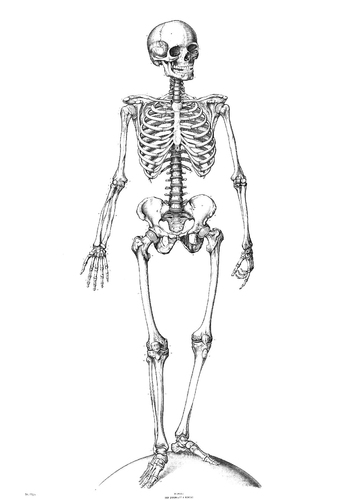
HTML alone provides a nice skeleton for a web page, but it doesn't *do* anything. In order to provide calculation and movement, we must add muscles and organs...in this class, those are accomplished with JavaScript.
Even the strongest body looks a little off without skin. We equate CSS to the skin, hair, and clothes. CSS allows us to style our page in a way that looks enticing and professional.
Using a combination of HTML, JavaScript and CSS, we can do many amazing things.
However am I going to memorize all of these tags before the midterm?!?!?! Don't worry, you don't have to memorize them all. In practice, you'll usually be able to look coding samples up on sites like this one. What I *will* expect you to have memorized is the basic frame of a web page, along with the <br/> tags, <i></i>, <ul></ul>, <li></li>, <div></div> and <script></script> tags. In addition, we'll be learning how to comment VERY well.
After we practice creating a couple of different HTML formats (take notes, please!!) and we take our best guesses at what we'll see upon rendering, we will be ready to learn how to make the page do something interesting!
Additional Links
* The page we worked on in class today
* Filezilla
* Smultron 3.5.1
* Logging on to Uoregon w/FTP
Configuring FizeZilla for your shell.uoregon.edu account (By Mike Pangburn)After installing FileZilla on your computer, run it for the first time.
- Click File–>Site Manager…
- Click New Site
- Type UOregon server to replace the default site name
- Click in the blank text input box next to the word “Host” and typeshell.uoregon.edu (enter)
- Click in the blank text input box next to the word “Port” and type 22 (enter)
- Click on the Server Type drop-down menu and select the SFTP option.
- Click on the Logon Type drop-down menu and select the Normal option.
- For the User and Password inputs, enter your current DuckID username and password information.
- Click OK to save these configuration details.
Now, to test whether those login credentials work, reopen the Site Manager… by clicking the menu item File–>Site Manager… and then choose the new UOregon server entry and click Connect. You may have to click OK to proceed with the login. When you are logged onto your server account, the FileZilla client will show your local computer account’s files on the left-hand-side of the window, and your server computer account’s files on the right-hand-side of the window.


No comments:
Post a Comment